

A good digital illustration setup can completely transform your creative process. Whether you’re a beginner or an experienced artist, the right hardware helps you draw more comfortably, work faster, and achieve better results. But with so many devices on the market, tablets, styluses, monitors, accessories, it can be overwhelming to know what you actually need.
This guide simplifies everything. You’ll learn about the essential hardware that supports digital illustration, how to choose the right devices, and which components make the biggest difference in your workflow. The goal is to help you build a setup that fits your budget, your space, and your creative goals without unnecessary complications.
Digital illustration doesn’t require expensive gear. What matters is knowing what each tool does and how it supports your style. Let’s explore the must-have hardware that forms the backbone of every digital artist’s workspace.
Start With the Core: Drawing Tablets
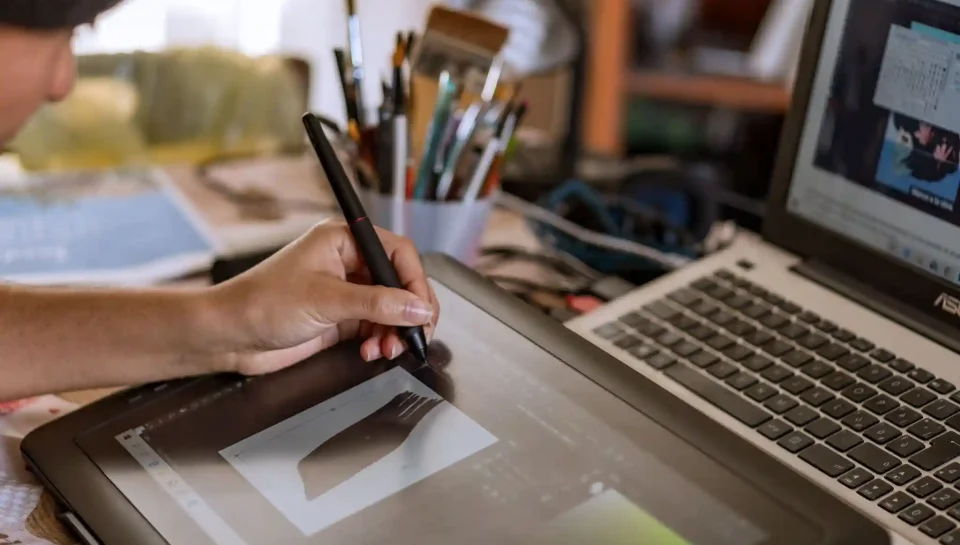
A drawing tablet is the heart of digital illustration. It replaces traditional paper and provides the pressure sensitivity, tilt response, and precision your artwork needs.
There are three main types of tablets:
1. Non-Screen Tablets (Graphics Tablets)
These tablets connect to your computer and let you draw on a flat surface while looking at your monitor. They’re affordable and reliable.
Benefits:
- Very budget-friendly
- Lightweight and durable
- Great accuracy
- Perfect for beginners
- Works well for long drawing sessions
Drawback: You must coordinate hand movement while looking at a separate screen, which may feel strange at first. But many artists master this quickly.
Popular brands: Wacom Intuos, Huion Inspiroy, XP-Pen Deco.
2. Display Tablets (Screen Tablets)
These tablets let you draw directly on the screen, offering a more natural, pen-on-paper experience.
Benefits:
- Intuitive to use
- Ideal for professional artwork
- More accurate line placement
- Great for detailed illustration
Drawback: More expensive, and larger models require more desk space.
Popular brands: Wacom Cintiq, Huion Kamvas, XP-Pen Artist.
3. Standalone Tablets (All-in-One Devices)
These are tablets with built-in processors that don’t need a computer. Perfect for artists who want portability.
Benefits:
- Draw anywhere
- Lightweight and mobile
- Powerful apps like Procreate
- Great for travel or small workspaces
Drawback: Limited to tablet apps, not full desktop programs unless using a high-end model.
Popular choices: iPad Pro + Apple Pencil, Samsung Galaxy Tab S9, Microsoft Surface Pro.
The Stylus: Your Most Important Drawing Tool
The stylus is your digital pencil. A good stylus improves your accuracy, control, and overall comfort.
Look for these features:
Pressure Sensitivity
Measures how light or hard you press. More levels mean smoother shading.
Tilt Recognition
Allows natural brush tilting, especially for shading or calligraphy.
Lag Reduction
A fast stylus feels smoother and more natural.
Comfort
A stylus should feel good to hold for long sessions.
The Apple Pencil, Wacom Pro Pen, and newer Huion pens are known for professional-grade performance.
Choosing the Right Computer
Whether you use a laptop or desktop, your computer should handle large files, multiple layers, and heavy brush workloads.
Key specs for digital illustration:
Processor (CPU)
Aim for at least an Intel i5, Ryzen 5, or Apple M-series chip.
RAM
8 GB minimum, but 16 GB is ideal for smooth performance with large files.
Storage
SSD is essential. It makes your system faster when saving or loading art files.
Graphics Card (GPU)
Not always required for illustration, but helpful if you animate or work in 3D.
Screen Size
Larger screens help you draw more comfortably and see finer details.
The Monitor: Clarity and Color Accuracy Matter
Your monitor is where the final artwork appears, so color accuracy is crucial.
What to look for:
- IPS panel for wide viewing angles
- High color accuracy (sRGB 100% or more)
- Adjustable brightness
- Matte finish to reduce glare
- At least 1080p resolution (1440p or 4K is ideal)
- 24–32 inch size for comfort
If you’re a professional illustrator, consider a color-calibrated monitor or invest in a calibration tool to ensure your colors display correctly across devices and prints.
Ergonomics: Setting Up for Long Drawing Sessions
A comfortable setup prevents wrist pain, back strain, and fatigue. Ergonomics might seem small, but they impact your performance more than you realize.
Ergonomic essentials:
Adjustable Chair
Supports your spine and keeps your posture healthy.
Tablet Stand
Prevents neck strain by keeping your device at a comfortable angle.
Monitor Arm
Lets you position your screen at eye level.
Keyboard Shortcut Remote
Helps you work faster with customizable shortcuts.
Wrist Support
Prevents fatigue during long drawing hours.
Small ergonomic adjustments make a huge difference over time.
Lighting: A Workspace Essential
Good lighting reduces eye strain and helps you see colors accurately.
Ideal lighting conditions:
- Soft, diffused desk lamps
- LED lights with adjustable warmth
- Avoiding sharp shadows or dark corners
- Natural daylight whenever possible
Bad lighting can distort colors and cause fatigue, so it’s worth investing in a proper setup.
Extra Accessories That Improve Workflow
These accessories aren’t mandatory but make your experience better:
Screen Protectors
Matte screen protectors give tablets a paper-like texture for natural drawing.
External Hard Drives
Helpful for storing large illustration files.
Drawing Gloves
Reduce friction and prevent smudging on screen tablets.
Multi-Port Hubs
Useful if you use tablets, monitors, and external drives together.
Bluetooth Keyboards
Great for tablets, giving you quick access to shortcuts.
Understanding Color Calibration
Color calibration keeps your screen colors accurate. Without calibration, your artwork may look different once printed or viewed on another device.
Using tools like SpyderX or X-Rite, or software built into some monitors, helps you:
- Maintain consistent colors
- Work confidently with prints
- Avoid mismatched tones
Professionals calibrate screens every few weeks for accuracy.
Setting Up Your Workspace
A clean, organized workspace improves focus and creativity.
Tips for effective workspace setup:
- Keep your tablet centered
- Place your monitor at eye level
- Use cable organizers
- Create space for sketchbooks
- Add plants or personal touches
- Keep your desk free of clutter
A workspace that feels good helps you create better and faster.
How to Choose the Right Hardware for Your Needs
Instead of buying everything at once, think about:
Your Art Style
Comic artists need precision. Painters need a tablet with smooth color blending.
Your Budget
Start small. Upgrade over time.
Your Workflow
Do you work at a desk or prefer drawing on the go?
Your Software
Some software runs better on specific devices.
Matching your hardware to your workflow makes your setup efficient and enjoyable.
FAQs
1. Is it necessary to buy a screen tablet to become a good digital artist?
No. Many professional illustrators began with non-screen tablets and still use them today. While screen tablets feel more natural, non-screen tablets are affordable, accurate, and reliable. The key to improvement is practice, refining your technique, and building a strong workflow, hardware simply supports that growth.
2. How powerful does my computer need to be for digital illustration?
A mid-range computer with a modern processor, 8–16 GB RAM, and an SSD is usually enough for smooth illustration work. Most illustration software isn’t extremely demanding. Animation or 3D work requires more power, but for painting and sketching, a well-balanced system performs perfectly.
3. What accessories really make a difference for digital drawing comfort?
Accessories like a tablet stand, ergonomic chair, matte screen protector, and wrist support can significantly improve comfort during long drawing hours. They help reduce strain on your neck, wrist, and eyes. These small improvements often have a big impact on productivity and drawing quality.
Conclusion
Building a digital illustration setup doesn’t require expensive equipment, just the right tools for your workflow. With a good tablet, a reliable computer, accurate display, ergonomic workspace, and essential accessories, you can draw comfortably and professionally. What matters most is how consistently and creatively you use the tools, not how costly they are.
A great setup supports your art. The real magic comes from your imagination, your practice, and your dedication to the craft.